
Sometimes in QuickBooks, I have seen 100’s or even 1,000’s of invoices or other transactions marked ‘To Be Printed’. How can you clear the ‘To be Printed’ status without printing them? You don’t want to waste all that ink and paper printing something you don’t need. You really do not want to manually edit each one and un-check the ‘To be Printed’ box.
There’s a couple of easy ways to clear the ‘To be Printed’ status of invoices or other transactions in QuickBooks without actually printing them: 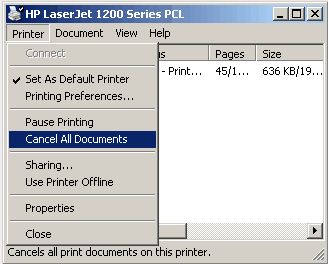
- Unplug the printer
- In QuickBooks, print the transactions to the printer
- Delete the print job from the printer
OR
- In QuickBooks, print the transactions to a PDF printer (you can get CutePDF free if you need it)
- Delete the PDF file
Either method will clear the ‘To be Printed’ status from the invoices or transactions for you — quick and easy!
I’ve printed to .pdf SO many times but the 1688 sales orders are still showing under TO PRINT. Help…
You may want to try printing them in batches — that may be too many to do at once. If you still have problems, you may want to contact support.
I have one client on the Mac 2014 version and I we can’t find a way to turn off the “to be printed” in the write checks. He only enters manual checks and debit transactions. I understand that if we can find how to turn it off on one check it should hold going forward – we just can’t find where to turn it off to begin with. Thanks so much for feedback!
When you enter a check (not edit) — uncheck the Print Later (or To be Printed) box and save the check. The next check should be the same.
and what if the check is already entered?? I have to delete all those checks an enter again?
Ok so I have over 13,000 invoices clear back in to 1999 that are marked to be printed! I cannot send them all to the printer because it shuts down my Quikbooks! If I sent about 300 at a time to print then I will be here for years just trying to clear them all!! Any genius way to get them GONE from to be printed batch file?
Try to print them normally with the printer turned off or only 1 page of paper in it. Worst case — I think there’s a tool to do it from http://www.q2q.us
My Quickbooks shuts down too while trying to send god knows how many to be printed. How do you send only 300 at a time?
Try this: Print to PDF and then delete it.
I found this page searching for a solution to have Quickbooks stop automatically making all Sales Receipts “to be printed”by default. I have been unable to find any way in preferences to undo this. Do you know if there is a way? I sometimes print and sometimes email receipts, but they always show in the print queue even if don’t select the print option. When I save the Sales Receipt, it automatically checks the “to be printed” box. Thank you.
Create a new sales receipt and uncheck the to be printed box so it will change the default for future sales receipts. If that doesn’t do the trick, edit the customer’s preferred send method to none (or email to mark things to be sent).
So here’s what I did to remove over 1400 emails from the QB Send forms que.
Set outlook to workoff line.
go to QB and send forms. I did in batches of 100+/- it failed out on doing the whole thing at once.
go back to outlook and delete all the messages in your outbox.
when done put outlook back online.
worked like a charm…..
Pingback: HELP – My QuickBooks print que is full of invoices “to be printed” | QuickBooks Certified Training Denver CO
I get that message, but there is nothing there to print. I think it appeared when I moved from 2011 to 2012. I would love to make it go away. Any ideas?
Deborah Adams
Try marking one invoice to print and then print it to see if it clears it out.
You can clear all of the “to be sent” items if you use Outlook. If you want to clear the “to be sent” items all at once, disconnect from the internet temporarily. Go to Edit>Preferences>Send Forms. Make sure the preferences are set to “Send e-mail using Outlook.” You can go back and change it when you are through if this is not your preference. Go to File>Send Forms. Send all those that you want to clear. Open Outlook. Go to your Outbox. Delete all of the e-mails you just sent. Now you can go back and change your setting back to “Send using QB e-mail” if necessary. You are ready to reconnect to the internet. Even if you don’t use Outlook, it may be worth setting it up temporarily just in order to get these cleared.
I don’t know a way to execute a mass dump of the “to be sent” que, but you can turn off the settings instead of open a dummy document to prevent future pile ups.
@Mindy — Unfortunately, I haven’t figured out a way to clear all the ‘To be Sent’ items at once. In the Send Forms window, click remove on each one. At least you don’t have to edit each one! 🙂
Great tip! How would I do that for the To Be Emailed invoices?
I like the unplug the printer option. Lol
How do I stop QB from automatically checking the ‘to be printed’ box in write checks? I have one client who handwrites checks and manually enters them. His to be printed box ALWAYS has to be cleared. Very frustrating!
@Christi — Tell them to enter a check and uncheck the ‘To be Printed’ box and save it. Then, the next check should stay unchecked too. I don’t think they can just edit a check though — they need to enter a new transaction. Then, it should remember the last setting and continue.
This is one of those helpful hints you don’t want to forget. Been there! Done that!